Visualizing your data on Google Sheets
Did you know you can sync your data to a Google Sheet AND keep it up to date?
We get it: sometimes it's just easier to play with the data on a nice spreasheet instead of building charts one by one.
In the video below you'll learn how to do that if you're using BigQuery or our Looker Studio Connectors 👇
Key Steps
Step 1: Access Google BigQuery 0:00
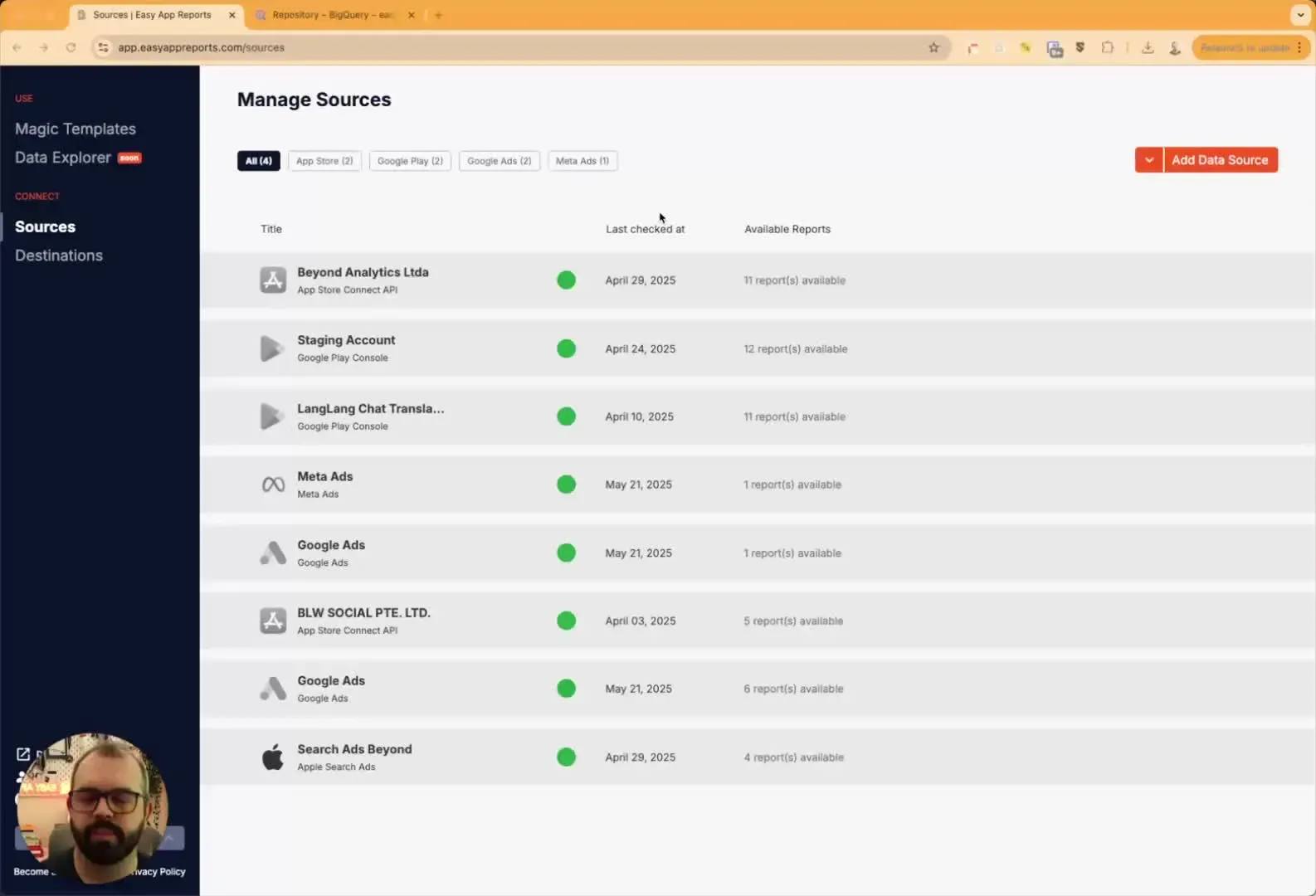
- Open your web browser and navigate to Google Sheets.
- Go to the 'Destinations' section and select 'Google BigQuery'.
- This will display the names of all your tables and datasets.
Step 2: Open BigQuery Console 0:40
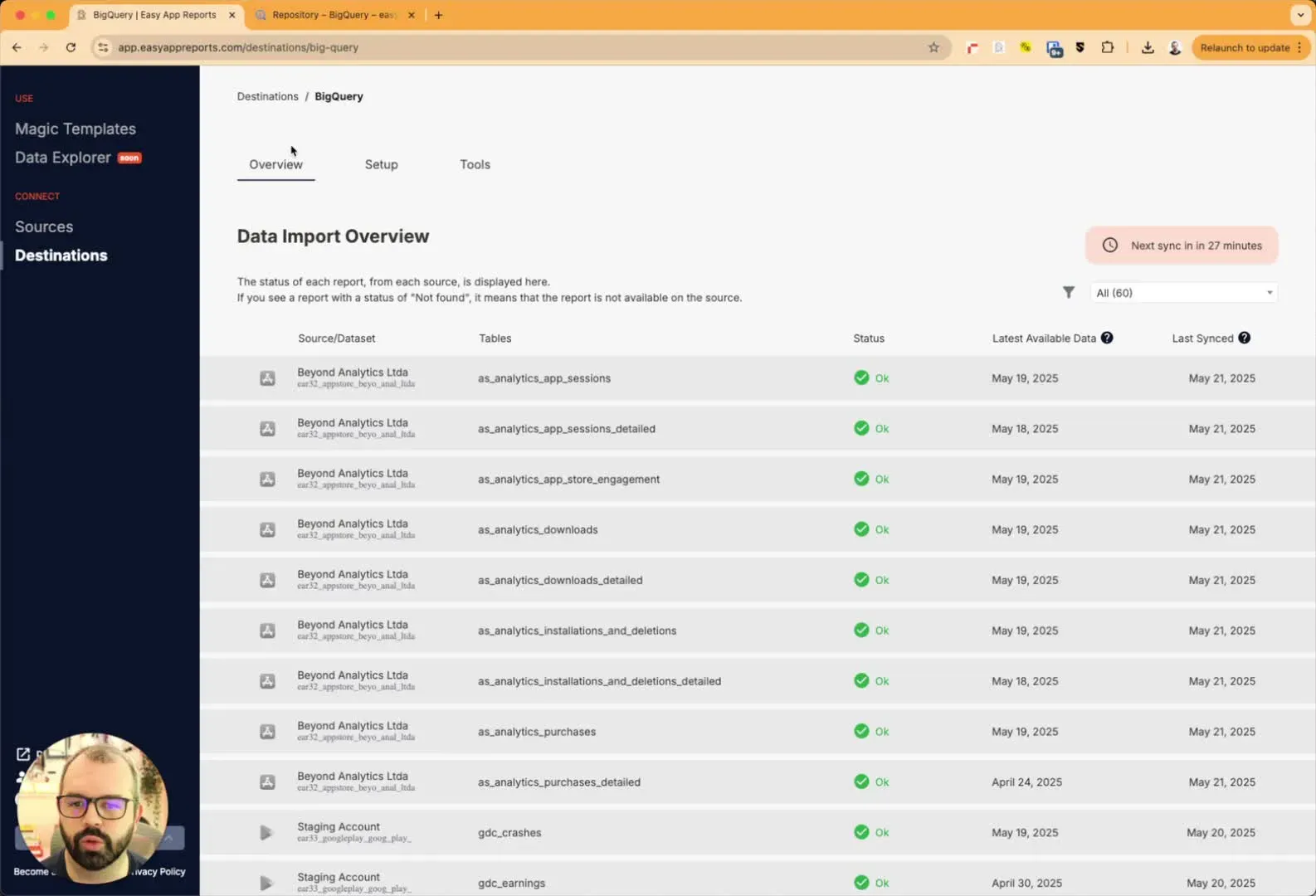
- In a new tab, go to the BigQuery console by entering the URL:
console.cloud.google.com/bigquery. - Ensure you are logged into your Google account.
Step 3: Locate Your Project 1:03
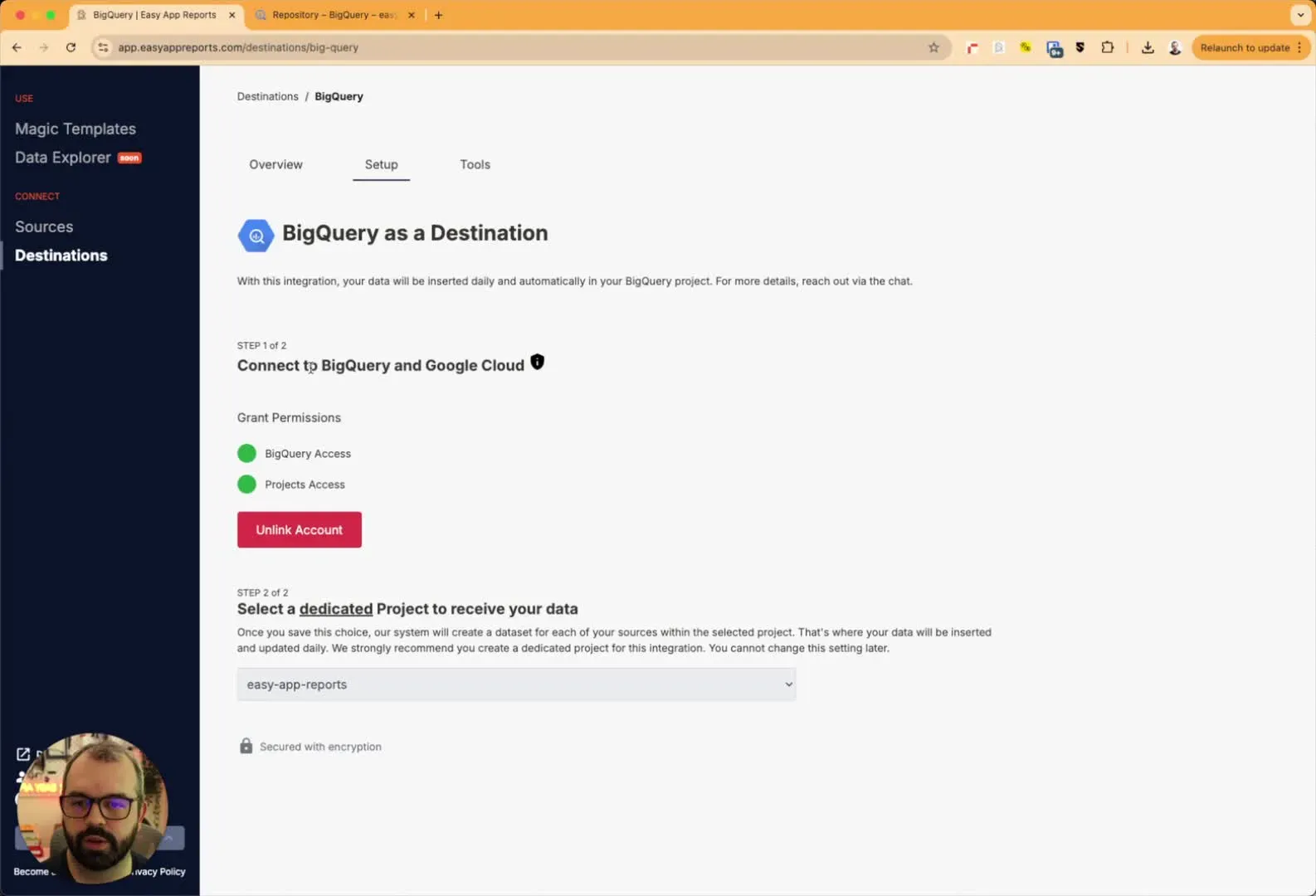
- Find your project name in the BigQuery console. For example, 'EasyAppReports'.
- Click on your project to view the datasets.
Step 4: Identify the Dataset and Table 1:12
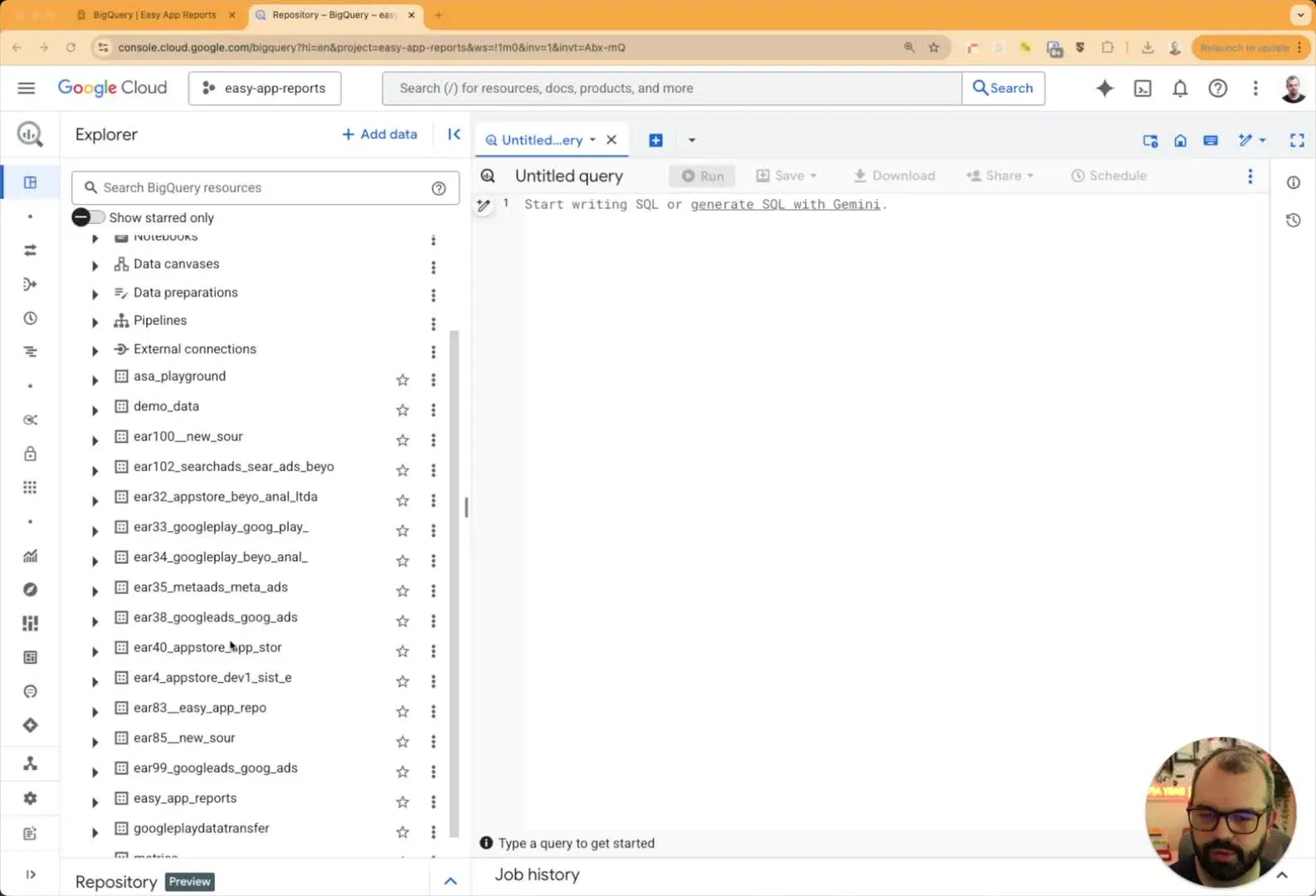
- Browse through your datasets to find the one you need (e.g., App Store, Search Ads).
- Locate the specific table you want to use, such as 'App Store Analytics Downloads'.
Step 5: Connect to Google Sheets 1:53
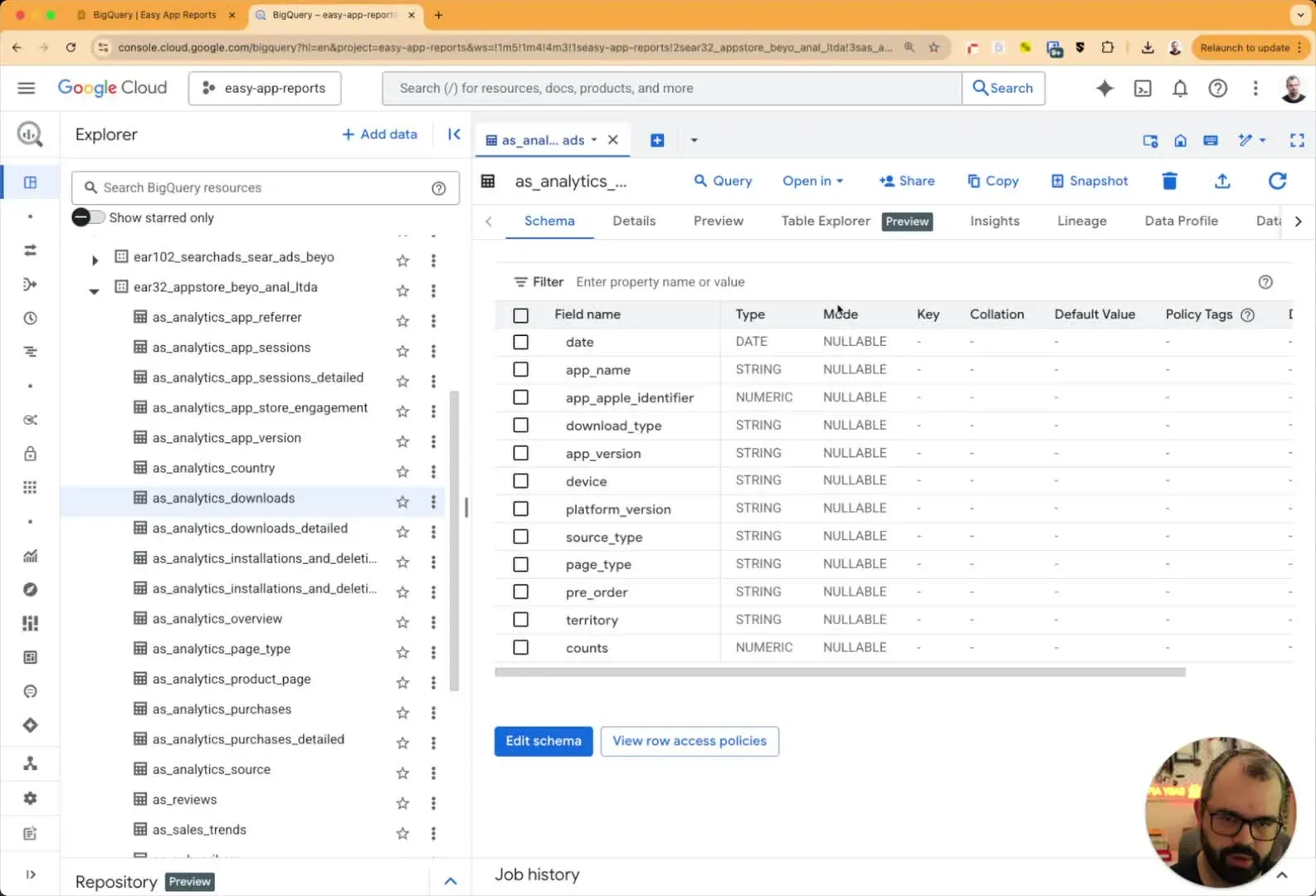
- Click on the table you want to connect to.
- Select the option to open in Google Sheets.
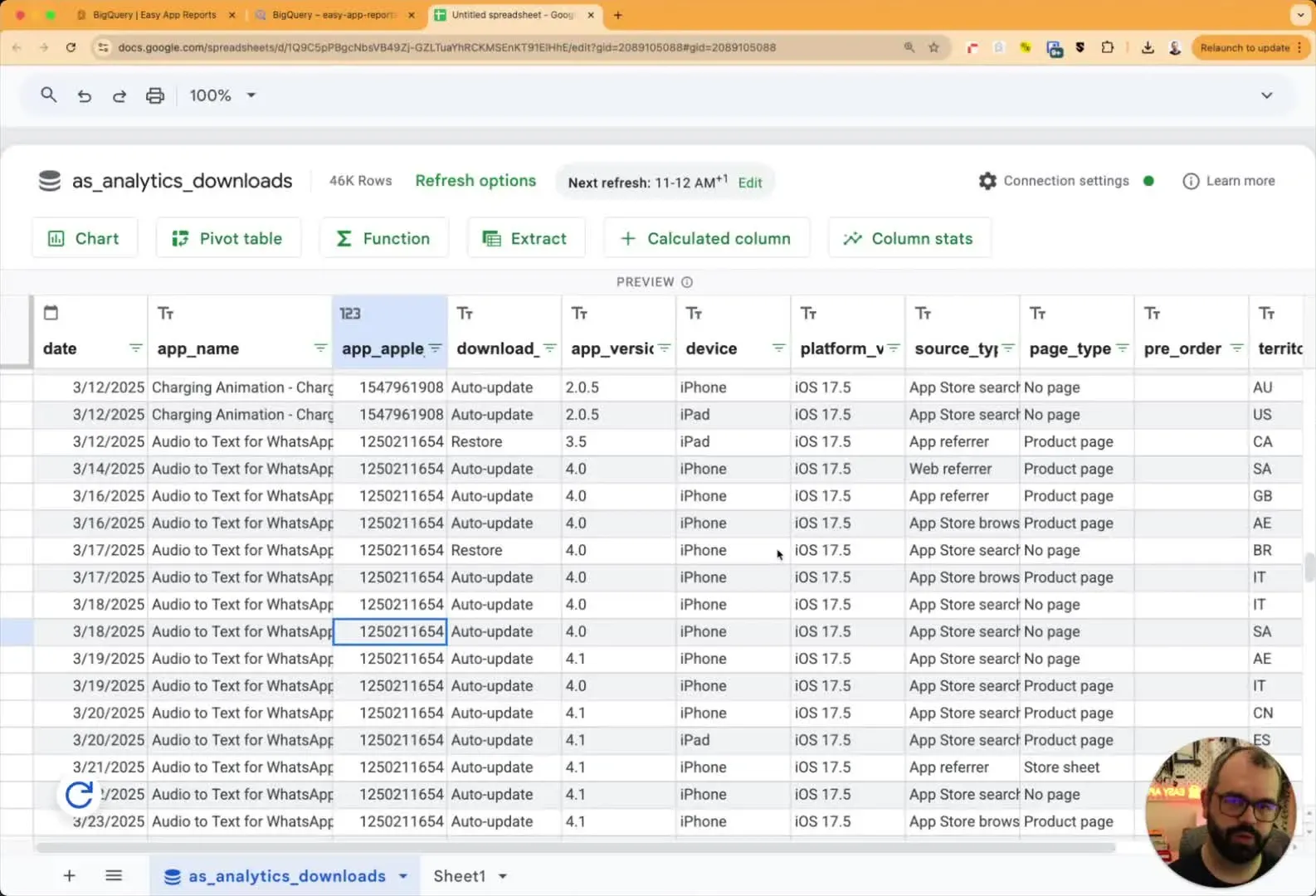
Step 6: View and Refresh Data 2:14
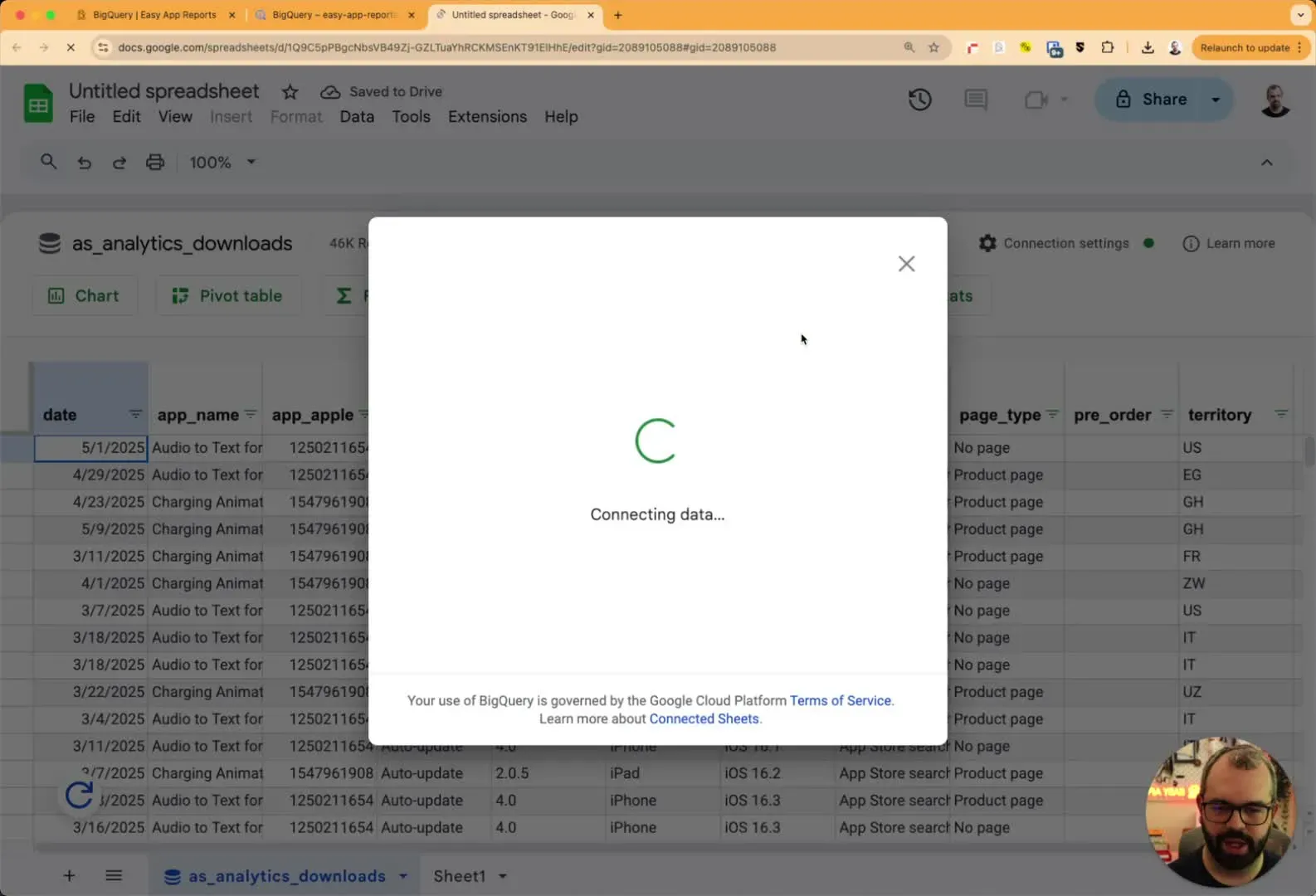
- Your data will now appear in Google Sheets.
- You can create pivot tables and other analyses from this data.
- To refresh the data, click the refresh button or schedule a refresh (e.g., every 12 hours).
Step 7: Alternative Method Using Looker 3:13
- In Looker, click 'Create a data source'.
- Select 'BigQuery' and choose your data source and report type.
- Create your report layout and add necessary fields.
Step 8: Exporting Data 4:43
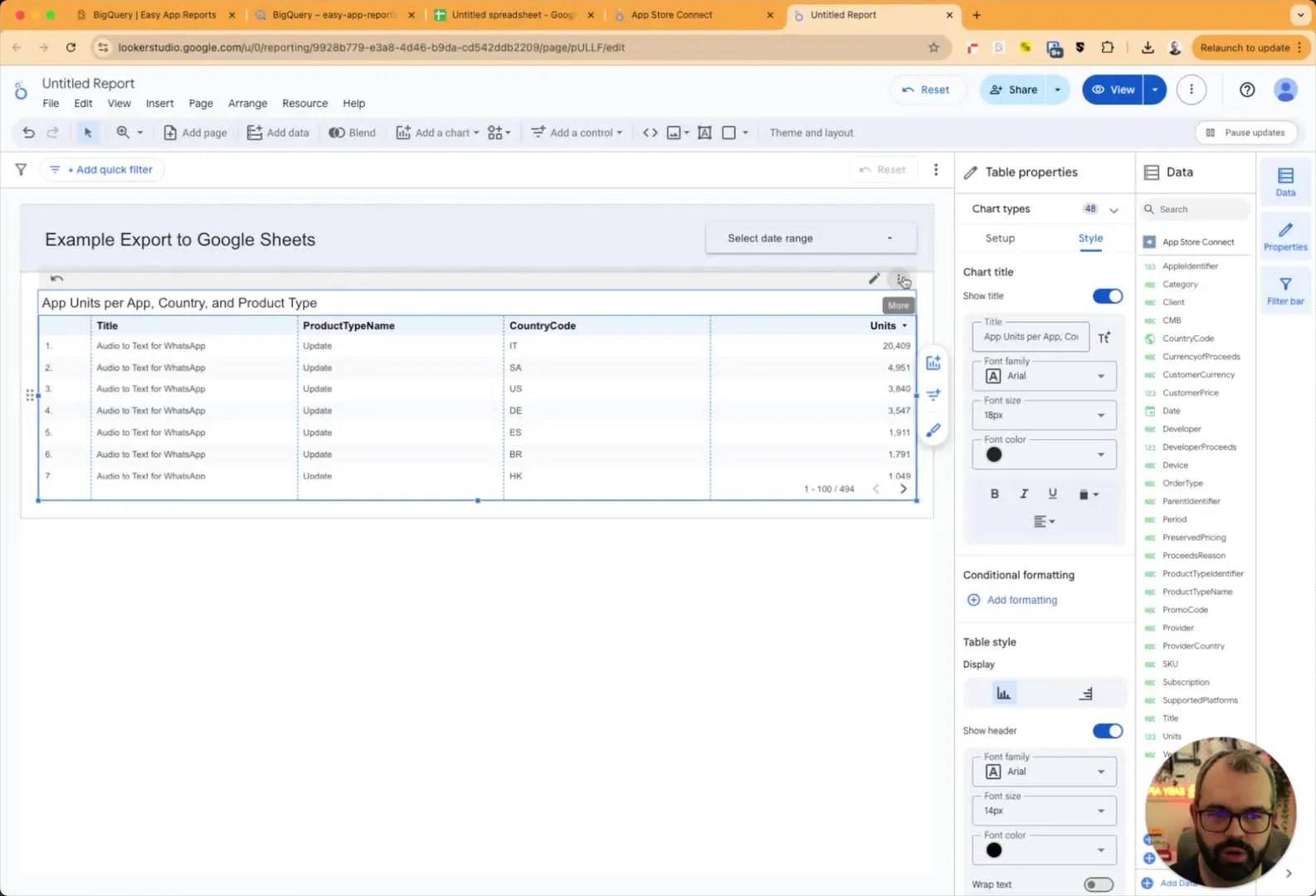
- Click on 'More' and choose to export the data.
- You can export as a CSV or Google Sheet, but note that this will be a static snapshot of the data.
Cautionary Notes
- Ensure you have the necessary permissions to access BigQuery and Google Sheets.
- Be aware that exporting data from Looker creates a static snapshot, which will not update automatically.
Tips for Efficiency
- Schedule regular refreshes in Google Sheets to keep your data up-to-date without manual intervention.
- Familiarize yourself with the dataset names and structures to streamline the process of locating the data you need.
