How to activate our Master template
Learn how to map your data sources and use our Looker Studio template with pre-built dashboards for your app.
Step 1: Open the template
To start, open the template in a separate window. Ideally, open it side-to-side with this article so you can read and complete each step in parallel.
Step 2: Click on "Make a Copy"
On the top right, you'll see an icon with three dots where the "Make a Copy" button will be visible. Click on it.
Step 3: Map Data Sources
You'll notice that some data sources will be set as (Unknown). That's because you'll not have access to our Google Play sources.
Check the image below to see the list data sources you should include and in which order.
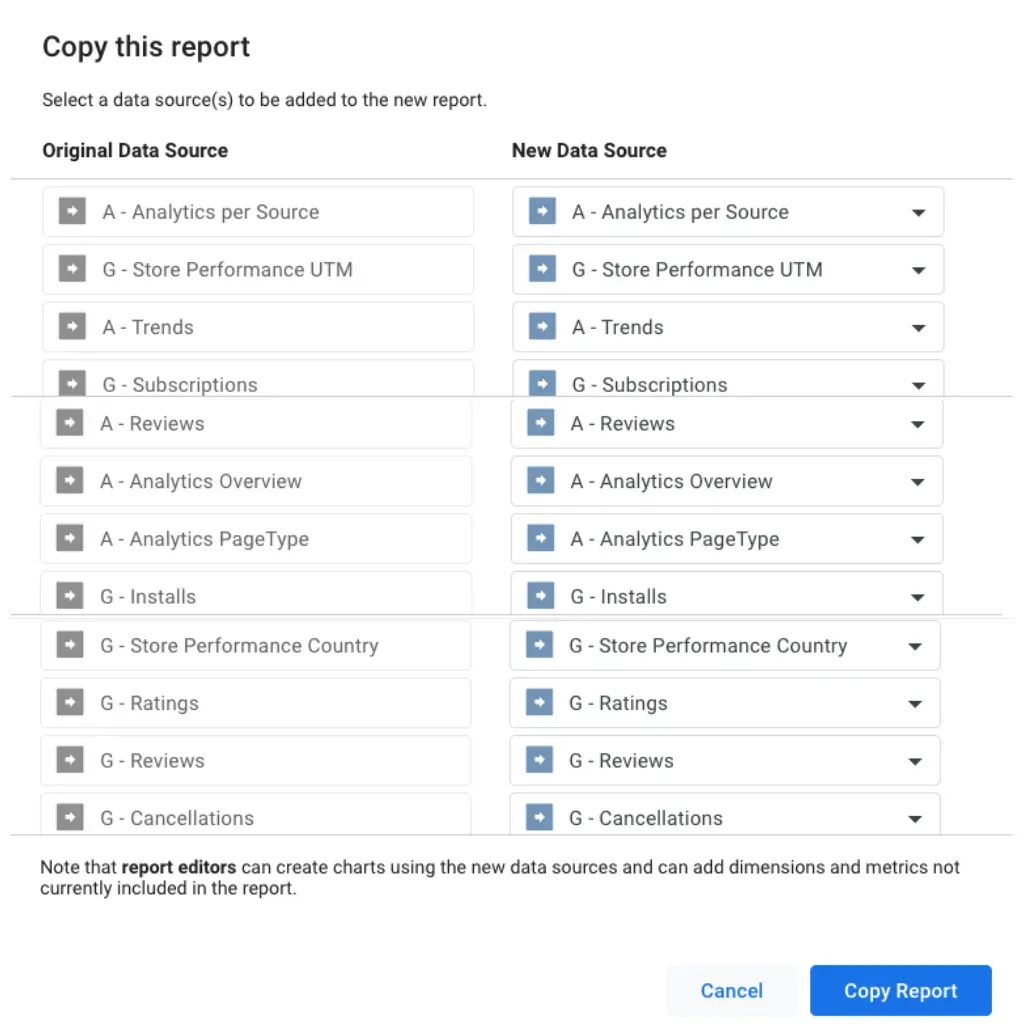
Once you map every source, you'll have your very own copy of this template, meaning you can now edit it, add/remove data sources, and share it with others!
Troubleshoot
"Authorise connector to view complete report"
If you see the page below when trying to "Make a Copy" it's because you're not logged in on your connector on this Google Account.
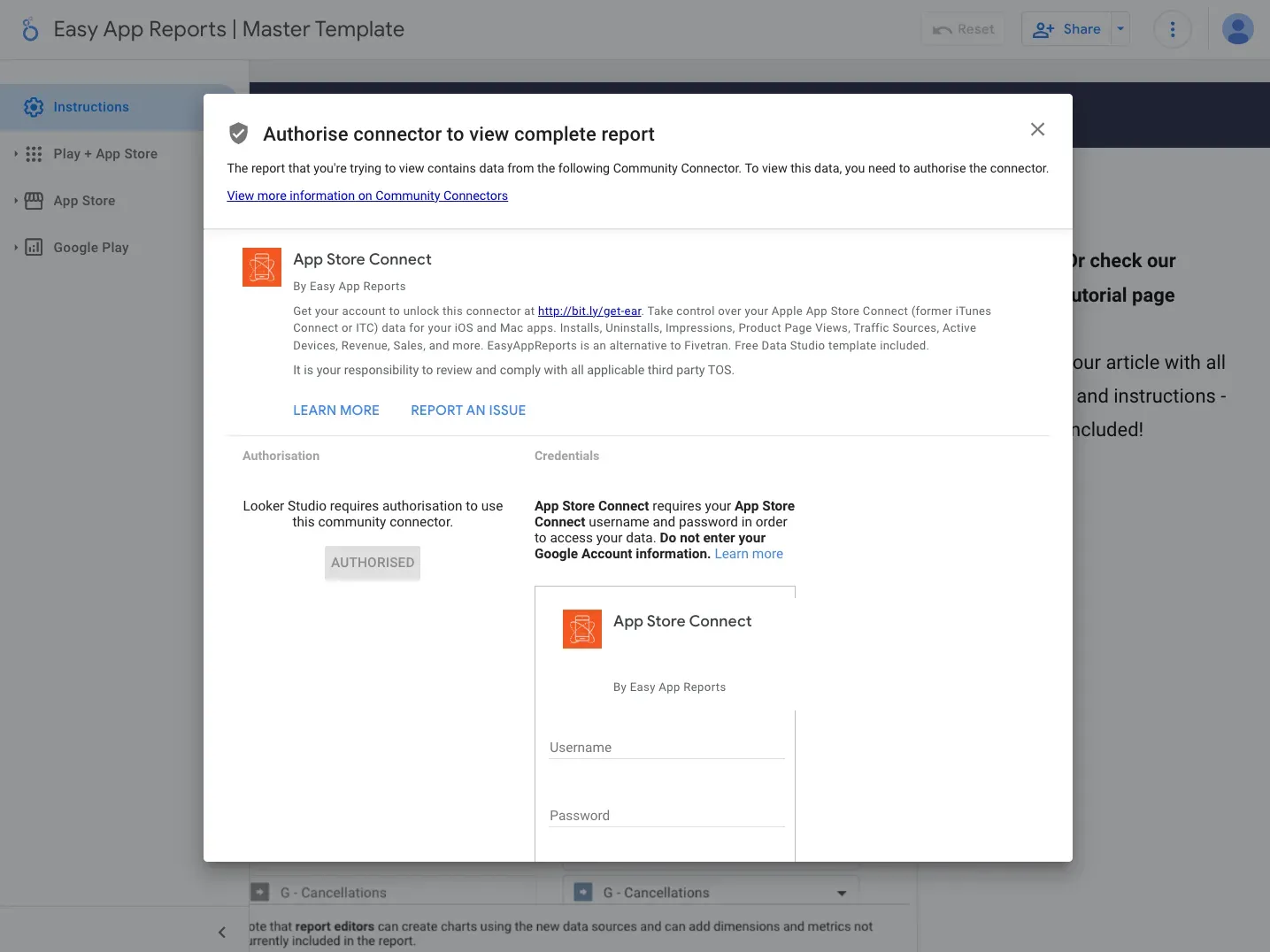
Enter your email (that's the username) and password to get through - that's all. If you forgot your password, you can reset it on this page.
